← back to Playlist Wrangler

Documentation

How-to guide

Everything Playlist Wrangler does, grouped by task. Jump to a section on the left, or search your question and the guide narrows to the matching answers.

For extension v1.21.0 Updated September 10, 2026

Getting started

Playlist Wrangler — Getting started

How do I open Playlist Wrangler?

Click the Playlist Wrangler toolbar icon to open the side panel (a sidebar in Firefox, and a window of its own in Opera and Arc, which have no side panel). It opens on any page, not just YouTube. You can also right-click any page and choose “Open Playlist Wrangler.” Keyboard shortcut: Cmd+Shift+P on Mac, Ctrl+Shift+P on Windows/Linux (Chrome, Edge, Brave). In Firefox it’s Alt+Shift+P on Windows/Linux, or Ctrl+Shift+P on Mac. You can rebind it from the gear settings, or at chrome://extensions/shortcuts.

What happens the first time I open it?

On an empty library it offers to scan your Watch Later — the Browse tab shows a “▶ Scan my Watch Later” button that reads the list and opens the newest 100 videos in detail, so you have something to search right away. Everything stays on your device. From there, open the Manage tab to add more playlists; until you have scanned one, a small looping demo above the list shows the gesture, and it disappears for good after your first scan.

What’s the difference between the Browse and Manage tabs?

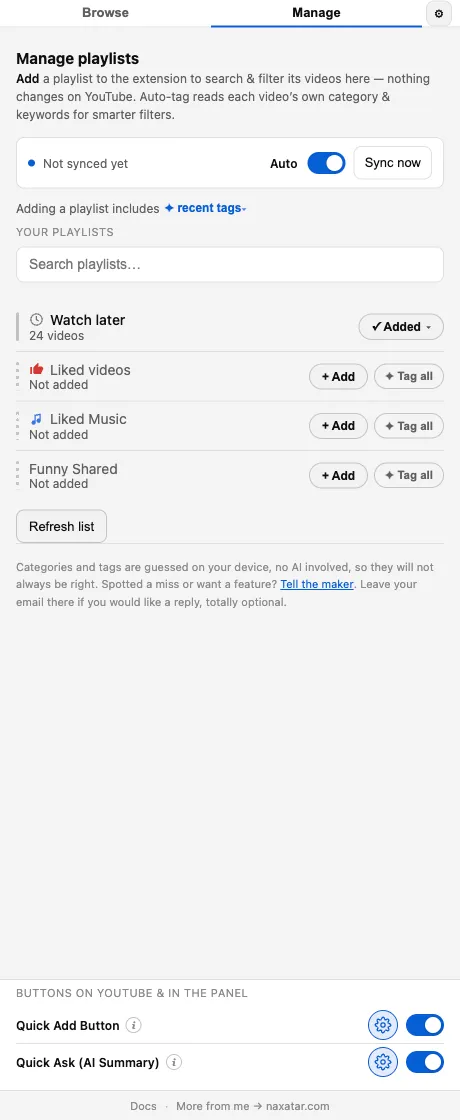
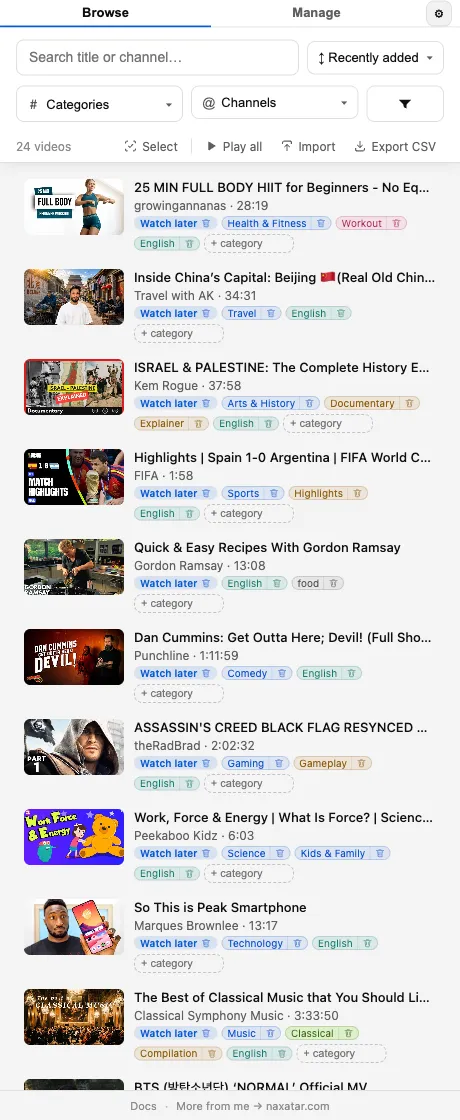
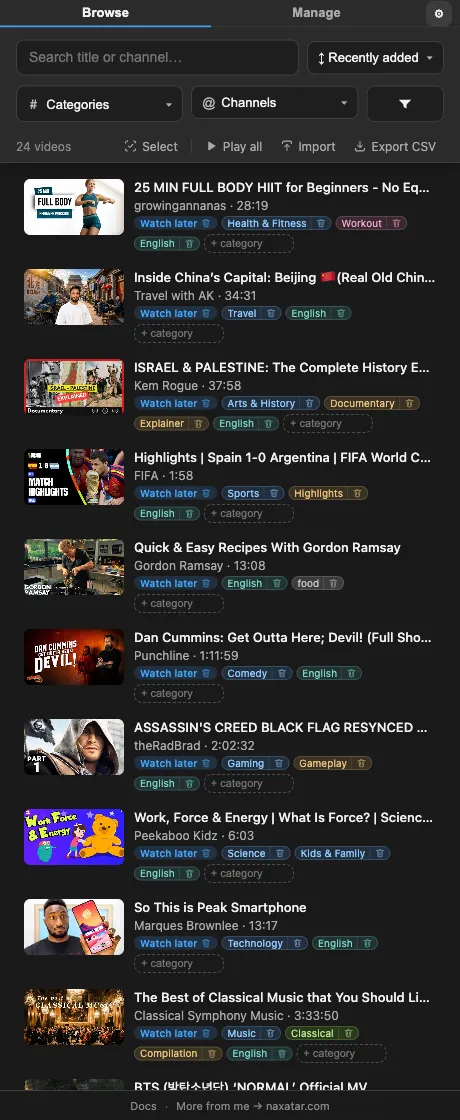
“Browse” is where you search, filter, sort, and play across everything you’ve scanned. “Manage” is where you scan playlists, run deeper scans over them, and reach the Quick Add / Quick Ask settings. The gear (⚙) opens app settings from either tab.

How is the Manage tab laid out?

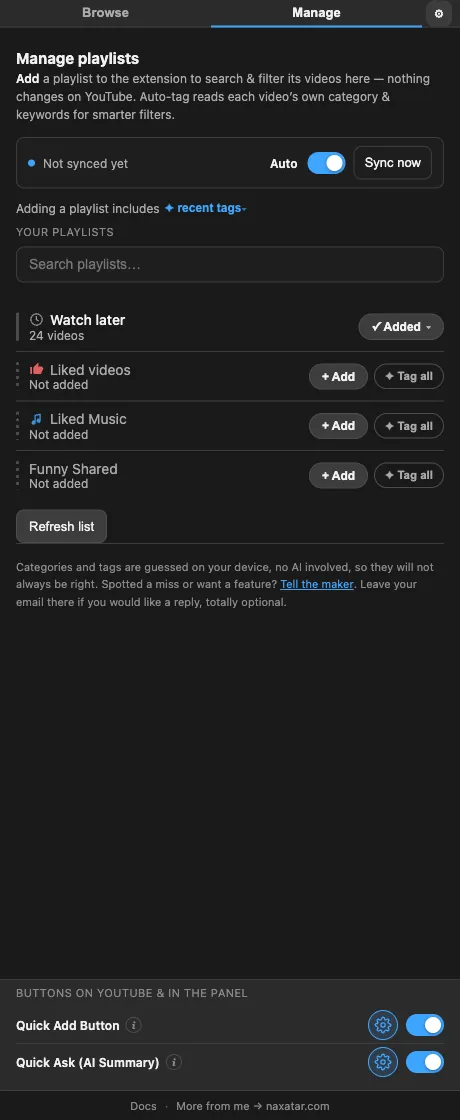
Manage holds three panels — Playlists, Quick add, and Quick Ask — and one is open at a time, so whichever you open gets the full width instead of being squeezed into a strip. Each header expands the panel on the left and switches that feature on or off on the right, which means you can set a feature up before turning it on. When Playlists is collapsed, its header still reports what’s happening (a long scan, a sync, an error), worst news first, so background work is never invisible.

Scanning playlists

Playlist Wrangler — Scanning playlists

How do I scan a playlist?

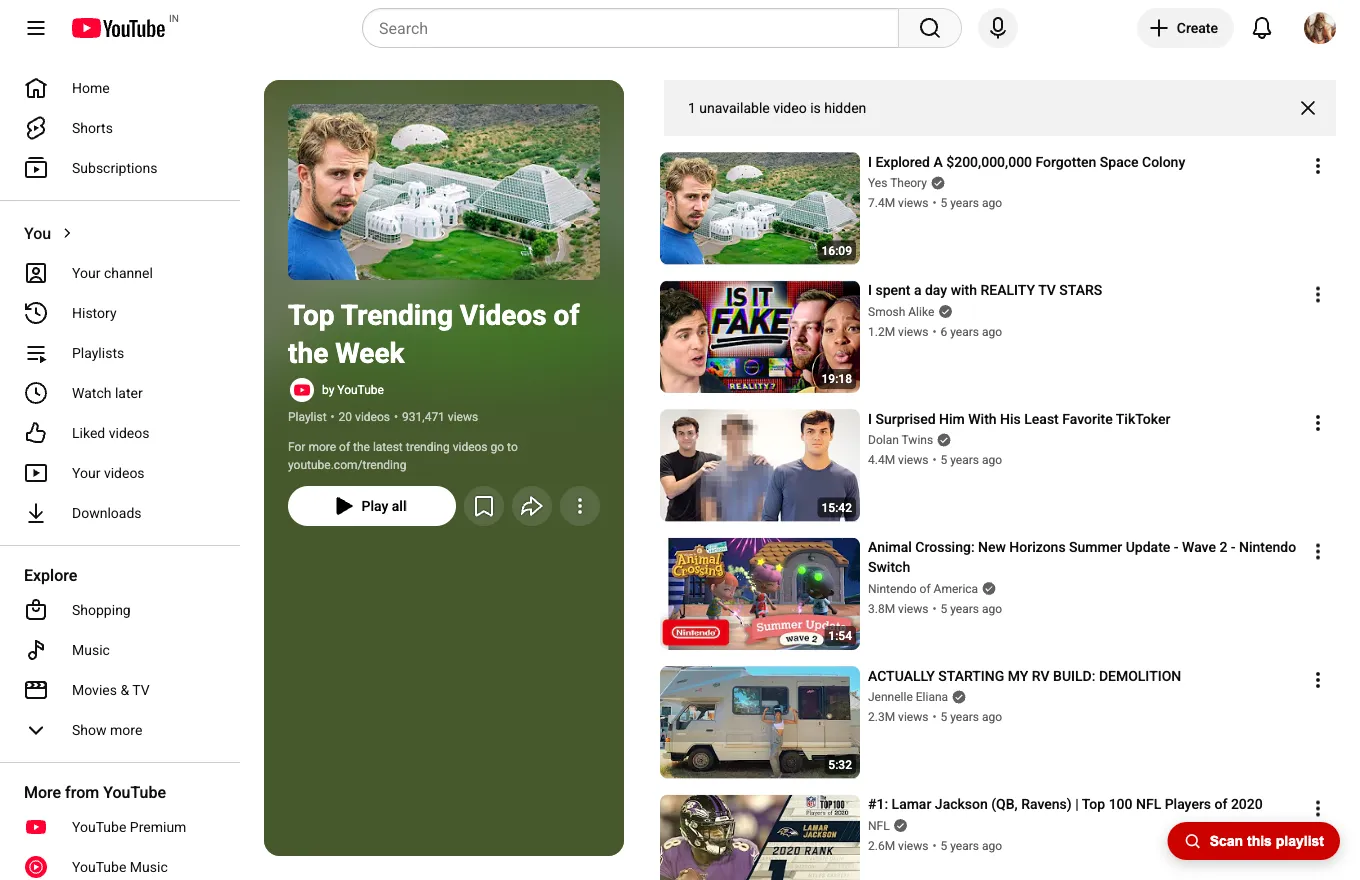
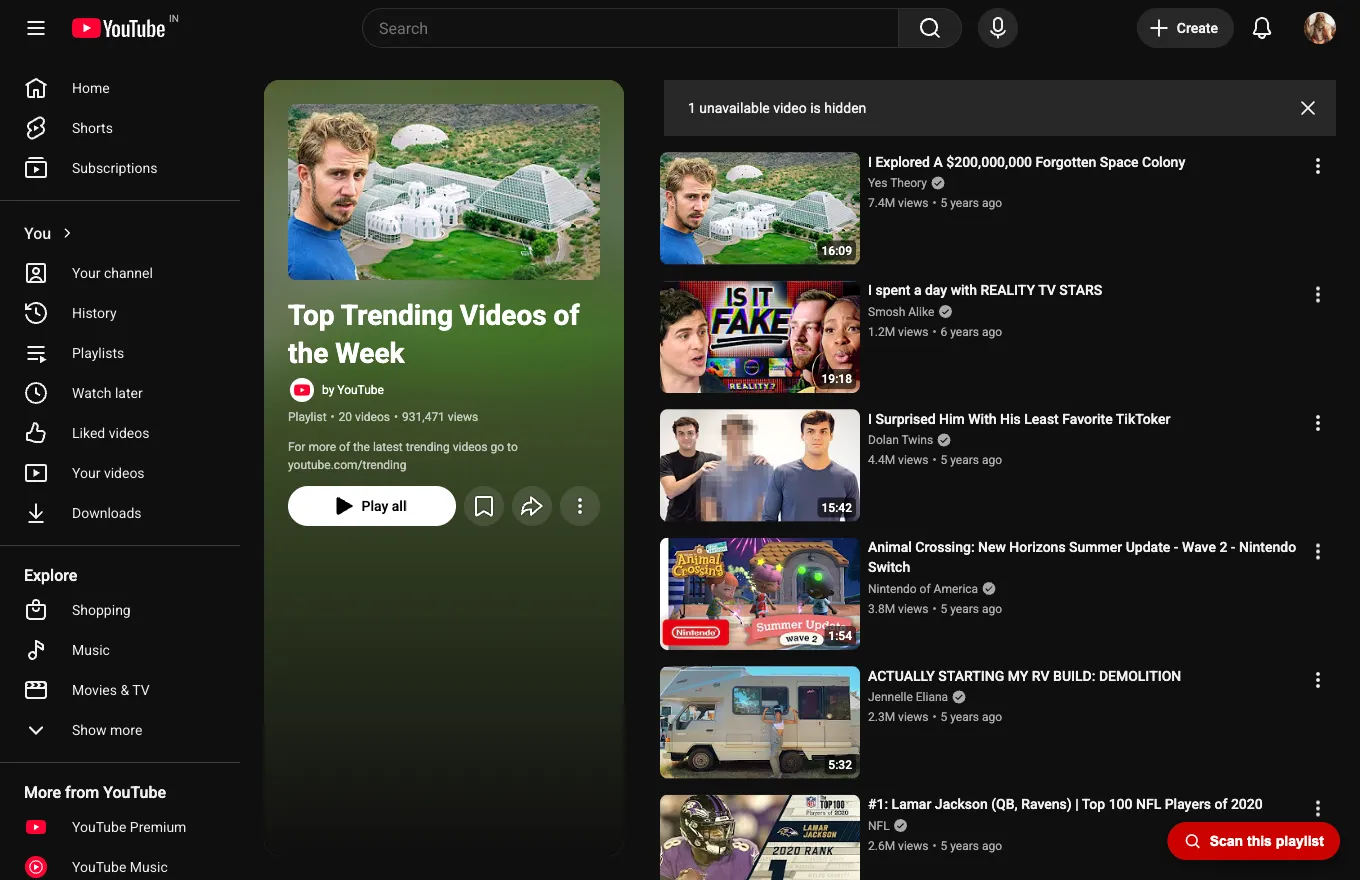
Two ways. On any YouTube playlist page, click the floating “Scan this playlist” button — it opens the panel and starts scanning that list. Or open the Manage tab, find the playlist in the list, and pick the middle stop of its switch. Watch Later, Liked videos, and Liked Music are always available. Nothing on YouTube changes — scanning only reads the list into your local library.

How do I scan every video in a playlist in detail?

Each playlist row in Manage carries one three-stop switch that reads left to right as increasing depth: not scanned, scanned, or every video scanned in detail. Pick the far stop and it opens every video in the list for YouTube’s own category, keywords and exact stats, with an ETA on the row. Picking a shallower stop stops a run in progress, and you keep whatever finished.

How deep does a scan go?

A scan always reads the whole list — every title and channel — and opens the newest 100 videos in detail. That is fixed, not a setting: the old “Scanning a playlist includes…” dropdown was removed in 1.19.0 because its options either duplicated the scan button or picked a shallower scan almost nobody chose. To go past the newest 100, pick the far stop of the row’s switch, which scans every video in detail at roughly an hour per 1,000.

What happens when a playlist nears YouTube’s 5,000-video limit?

YouTube stops a playlist at 5,000 videos and never says so: the save button flashes “Saved” and the video is dropped. Past 90% the Manage row’s count turns into a fraction, “4,812 / 5,000”, and every Add and Move menu — in the panel and on thumbnails — shows how many fit, or marks the playlist Full and won’t let you pick it, with the reason on hover. A “Free up room” link on the row opens the playlist in Browse with its oldest 500 videos already selected, so moving them into another playlist is the next click. Liked videos is the exception: liking keeps working past 5,000, so it reads Overflowing instead of Full and stays pickable (see “Liked videos past 5,000” below).

My playlists aren’t showing up — how do I refresh?

Every place that lists your playlists — Manage, the add and move pickers, the Quick Add search, the target settings — renders from a stored copy of your playlist directory, so it opens instantly. Opening Manage freshens a list older than a few minutes by riding a YouTube tab you already have open, and the Refresh control forces it. A playlist you create through the extension appears everywhere at once, with no refresh needed. If a refresh fails you keep your last good list rather than an empty one, and Manage says so, dates the copy you’re looking at, and offers a retry. If you’re signed out, sign in on YouTube and try again.

Search, filter & sort

Playlist Wrangler — Search, filter & sort

How do I filter by playlist, category, or channel?

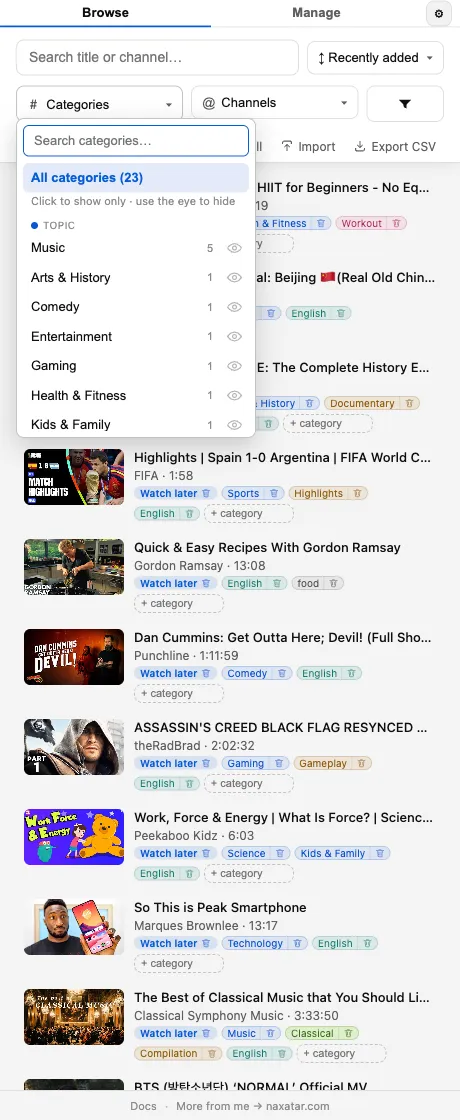
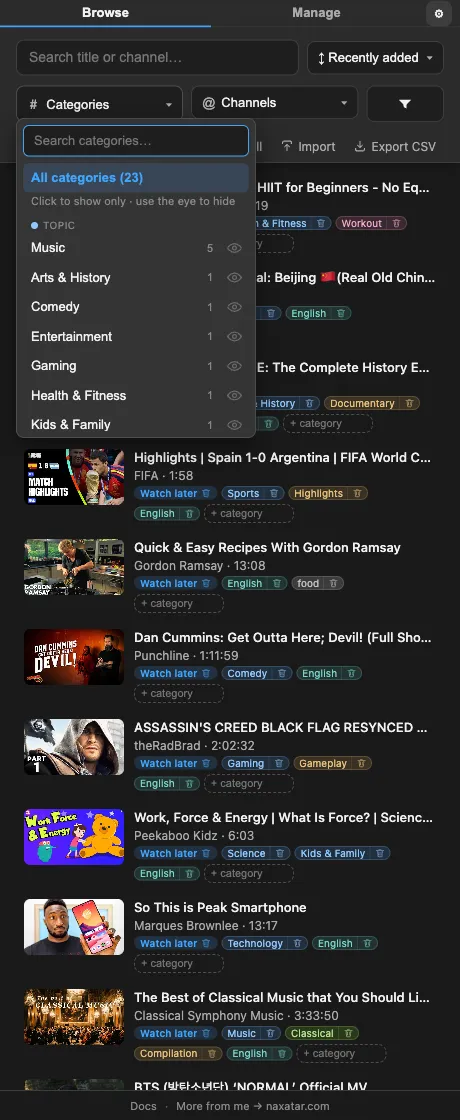
Use the Playlist, Category, and Channel filter pills at the top of Browse. The category picker lays its groups out as colour-tinted chips under group labels, so you see the whole taxonomy at once instead of scrolling one long list; playlists and channels list by name, and Watch Later, Liked videos and Liked Music carry their icons wherever they appear. You can also click a channel name, or a category/playlist chip on any row, to filter to it instantly, and click it again to clear. Stack filters to narrow thousands of videos down fast; the list scrolls back to the top whenever what it shows changes.

There are a hundred categories — how do I find the right one?

Open the Categories or Channels filter and a “Narrow down” band sits at the top offering only the values still present in your current results, newest first, with counts scoped to those results. On a big scanned library that turns scrolling a hundred categories into picking from the handful that can still match. Every section is collapsible, and the filters you’ve actively picked stay open.

How do I filter by length, views, age, captions, or availability?

Click the “More filters” funnel button. It opens with a Videos | Shorts choice and, once any verdicts exist, On YT Music | Not on YT Music, then ranges for length, age, views and likes, a captions filter, and an availability filter for the rows YouTube has hidden or dropped (Unavailable and Overflow). Language sits with the categories. A badge shows how many extra filters are active, and the menu grows with the panel rather than scrolling in a small box.

Can it tell Shorts from videos?

Yes, and it never guesses. A Short in a playlist looks exactly like a video — same row, same /watch link, same thumbnail — and length is no help, since Shorts run to three minutes while plenty of two-minute uploads are ordinary videos. So the extension asks YouTube, using the playlist’s own Videos-only view, and for videos a sync has just added, where the /shorts/ link for that id lands. Anything not yet classified reads as a video, so nothing disappears while the pass catches up. Playlists made entirely of Shorts scan properly too.

Can I make the video list more compact?

Yes. Every card has a small arrow that folds it down to a single line, and that arrow is one shared setting, so a single click quietens the whole list rather than making you work down it. Collapsed, a card keeps its playlist chip, a count of the categories it is holding back, and the button to add one, which fits seven cards on screen where five used to go, and hands the width back to long or collaborative channel names. If you are filtering by a category, that chip stays visible on every card even while the rest are folded away, so the list keeps explaining why each video matched. Your choice is remembered.

How do I sort the list?

The Sort control offers Recently added (the default), newest and oldest upload, longest and shortest, most liked, likes-per-view ratio, and a random shuffle. Sorting applies to whatever the current filters have narrowed you to.

Stats & the like ratio

What is the percentage next to the view count on YouTube?

That’s the like-to-view percentage: likes divided by views, so you can tell how well a video landed before you open it. It sits inline in YouTube’s own byline, right after the view count, on home-feed cards, suggested videos, and under the title on the watch page (both watch layouts). It’s read from what the page already reports, so nothing extra is fetched to show it.

What are the numbers on each row in the panel?

Every row shows likes, views, the like-to-view ratio, length, and age, so a huge list can be judged and cut by what people actually did with each video rather than by title alone. The same numbers back the sorts and the “More filters” ranges.

Playing videos

How do I play a video?

Click any video row to play it on the panel’s tab. Hold a modifier or middle-click to open it in a new tab instead.

Can I play a whole filtered set in order?

Yes. Pick “Play from here” from the play button on any row’s thumbnail and your current filtered/sorted set plays from that row down, in order, as a temporary YouTube playlist with autoplay and next working normally. No playlist is created or left behind. The old “Play all” button is gone since 1.21.0: the list always played from any row, and one way to do it is enough. YouTube caps a temporary queue at 50 videos, so larger sets are truncated.

How do I play just the videos I pick?

Select them and press Play. The results bar’s Play button appears only while videos are selected, reads “Play 5”, and plays exactly those, in the order you picked them — each selected row wears a number showing its place in the queue. So queuing up a session is: Cmd-click (Ctrl on Windows) each video you want, then press Play. It plays in the panel’s tab; hold a modifier or middle-click for a new tab.

Which of my videos are songs, and can I play them on YouTube Music?

The panel knows which of your videos YouTube Music will play — asked of YouTube Music itself, not guessed from a title or channel, and filled in with each scan and sync. Each song carries a small music note on its row; click it to show only songs, remembered across opens, the same way clicking a channel name filters by that channel. The same choice sits under More filters as On YT Music or Not on YT Music, next to Videos or Shorts — worded as where it plays, not as a genre, because the Categories pill already has a Music label that means something else. A video nobody has asked about yet is in neither bucket, so a song is never filed as not music by default, and a line under the count says how many are still being checked. To play there: a song’s playback menu offers “Play on YT Music” for that song and “Play from here on YT Music” for the songs on screen from that row, in the order shown, and with songs selected a YT Music button sits beside Play while the filter is on. Everything else plays on YouTube exactly as before. Songs drop the Quick Ask button on their row, since there is nothing to summarise.

Can I add videos to YouTube’s real queue instead of replacing what’s playing?

Yes. The play button in the corner of a row’s thumbnail opens a small menu with Play from here, Play next, and Add to queue. The last two write into the actual queue of the YouTube tab you have open — the same one YouTube’s own “Add to queue” fills — so you can stack videos onto whatever is already playing. With videos selected, a Queue button sits beside Play in the results bar and adds them all, in the order you picked them, after the current video; the toast says exactly how many landed. If no YouTube tab is open the button says so rather than doing nothing. There is deliberately no “Queue all” for the unselected list.

Quick Add

Playlist Wrangler — Quick Add

What is the “+” button on thumbnails (Quick Add)?

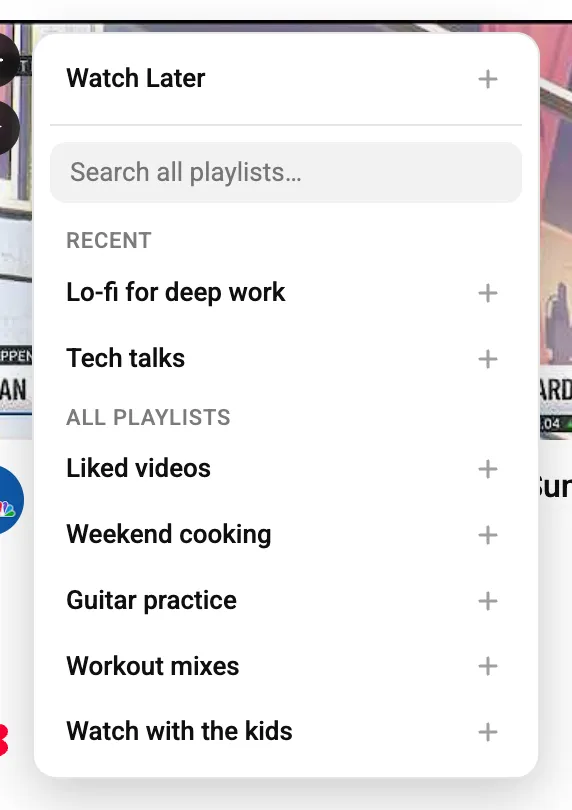
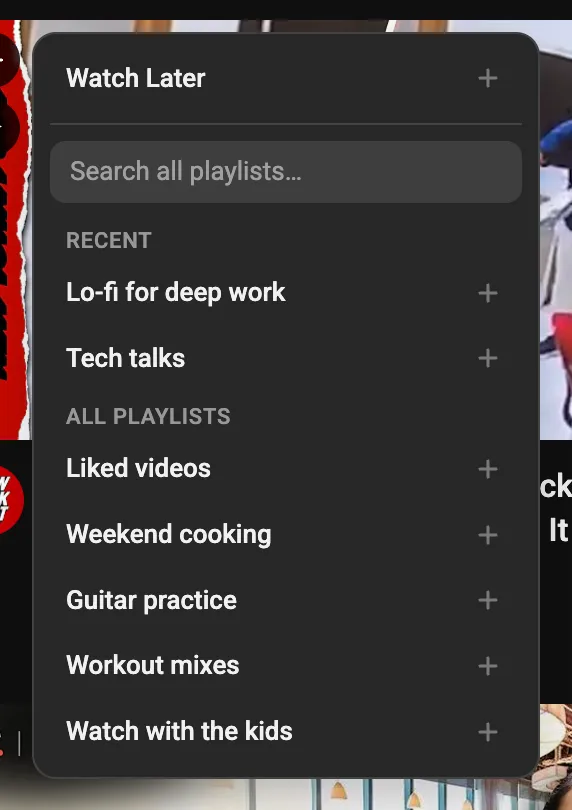
A round “+” button appears on video thumbnails across YouTube, on channel pages, and on the watch page. One click saves the video to your default target playlist. Hover to pick from up to three configured target playlists, or to search your whole library. A ✓ means it’s already saved — click the ✓ to remove it. The same button sits in the corner of each row’s thumbnail inside the side panel, and appears when you hover the thumbnail. Saving to “Liked videos” likes the video; removing un-likes it. To create a playlist while saving, use the panel’s Add menu, which offers “New playlist…”.

How do I configure Quick Add (where it shows, which playlists)?

In the Manage tab, open the “Quick add button” card: turn it on or off, choose whether to mark videos already in your library with a ✓, pick which YouTube surfaces it appears on (Home, Search, Watch page, Watch sidebar, Subscriptions, Channel pages, Playlist pages, and the side panel), and choose up to three target playlists plus which one is the default. A gear on every Quick Add menu on YouTube itself opens straight to those settings, so you never have to find them from the panel.

Quick Ask (Beta)

Playlist Wrangler — Quick Ask (Beta)

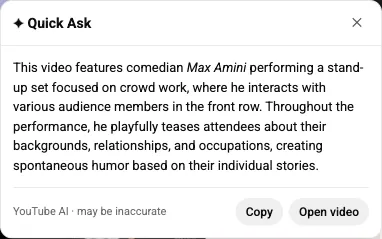
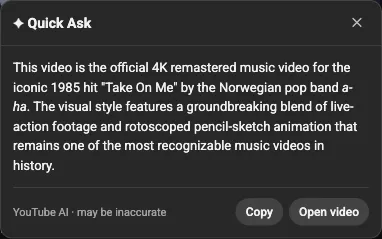
What is Quick Ask (the ✦ button)?

The ✦ button on thumbnails and the watch page summarizes a video without playing it, showing the answer in a card glued to that video. It uses YouTube’s own built-in “Ask” AI, so there’s no extra sign-in. It only works on accounts that have YouTube’s Ask feature, it’s in beta, and answers can be inaccurate. A click runs your default mode; every other mode sits in a row across the top of the answer, one click away, with the one you’re reading marked. Answers can include clickable timestamps that seek the player, and web links in an answer open in a new tab. On panel rows the button is off by default — asking is something you do while looking at the video on YouTube — and one toggle in settings brings it back.

Do Quick Ask answers stay open, and can I read one again?

Answers stay open until you dismiss them, each attached to its own video, so asking about a second video no longer closes the first. A new answer steps aside rather than landing on top of one already open, clicking an answer lifts it above its neighbours, and Escape closes them one at a time, newest first. Leaving the page or going fullscreen clears them all. Manage → Quick Ask lists the answers from the past week, newest first, with the question that produced each one, read from the cache the feature already kept, so nothing new is stored.

Can I customize what Quick Ask asks?

Yes. Ask modes are editable saved questions (a name plus a prompt). Three ship by default — Short Summary, Key Points, and Chapters — and the settings offer more to add in a click: ELI5, Timestamps, Key quotes, Does it deliver?, Counter-arguments, and Action items. You can set a default, edit them, and write your own, in the “Quick Ask” card on the Manage tab; the gear on any answer opens straight to that list.

Categories

Playlist Wrangler — Categories

How does automatic categorizing work?

The moment a playlist is scanned, every video is sorted by a multilingual local classifier across 34 topics, over 100 music genres, film & TV genres, formats, moods, and 39 languages. Chips are color-coded by group. This is automatic and free — nothing to label by hand, and no paid tier. It is also a guess: the categories are worked out on your machine from what a video says about itself, so some will be off. Every one can be changed or removed, in bulk if you like, and anything you set by hand is never overwritten. See the full list below.

What categories can it detect? The full list

Six independent groups, so one video can carry several categories at once (a track can be Punjabi + Hip-Hop + Workout). Genres roll up their family tree: a Deep House track is filed under House, Electronic, and Music too.

  1. 01 Topics (34) — Music, Gaming, Technology, Science, Education, Programming, Business, News, Comedy, Film & TV, Sports, Food, Travel, Health & Fitness, Beauty & Fashion, Autos, Pets & Animals, Home & DIY, Lifestyle, Kids & Family, Arts & History, Spirituality, Nature & Outdoors, Self-Improvement, Photography, Filmmaking, Dance, Visual Arts, Real Estate, Law, Language Learning, Parenting, Relationships, Entertainment.
  2. 02 Music genres (104, in families) — Pop (K-pop, Synth-pop, Hyperpop…), Hip-Hop (Trap, Drill, Phonk, Lo-fi Hip-Hop, Desi Hip-Hop…), R&B (Neo-Soul, Funk, Gospel…), Electronic (House → Deep/Tech/Progressive House, Techno, Trance, Drum & Bass, Dubstep, Synthwave…), Rock (Indie, Punk, Grunge…), Metal, Jazz, Blues, Country, Folk, Classical (Film Score, Solo Piano…), Reggae, Latin (Reggaeton, Salsa, Regional Mexican…), Afrobeats (Amapiano), Indian (Bollywood, Bhangra, Sufi, Ghazal, Hindustani Classical, Carnatic…), Lo-fi, Ambient, Instrumental.
  3. 03 Film & TV genres (13) — Drama, Action, Thriller, Horror, Sci-Fi, Fantasy, Romance, Crime, Mystery, Adventure, Animation, Anime, Superhero.
  4. 04 Formats (30) — Tutorial, Review, Comparison, Reaction, Vlog, Podcast, Interview, Trailer, Documentary, Explainer, Compilation, Highlights, Ranking, Challenge, Unboxing, Gameplay, Speedrun, Esports, Live, Course, ASMR, Music Video, Lyric Video, Cover, Remix, Mashup, Q&A, Behind the Scenes, Keynote, Recap.
  5. 05 Moods (11) — Study / Focus, Sleep, Relaxation, Workout, Party, Motivation, Romantic, Sad, Happy, Driving, Meditation.
  6. 06 Languages (39) — English, Hindi, Punjabi, Spanish, Portuguese, French, German, Italian, Japanese, Korean, Chinese, Arabic, Russian, Tamil, Telugu, Bengali, Urdu, Marathi, and more. Detected from the script itself where possible, and from artist, label, and word cues for romanized titles.

What does scanning a video “in detail” add?

The list alone gives names and channels. Scanning a video in detail opens it for its real YouTube category, the uploader’s keywords, the full description, and exact stats, which sharpens the categories and adds music-genre and language detail. Every scan does this for the newest 100 videos; the far stop of a row’s switch does it for every video. It’s throttled and resumable.

Can I add my own categories?

Yes. Each video row has a “+ category” input with live suggestions that reuse your existing labels. Your own categories sit alongside the detected ones and filter identically. Remove one with the trash icon on its chip.

Organizing: bulk actions & membership

Playlist Wrangler — Organizing: bulk actions & membership

How do I select multiple videos?

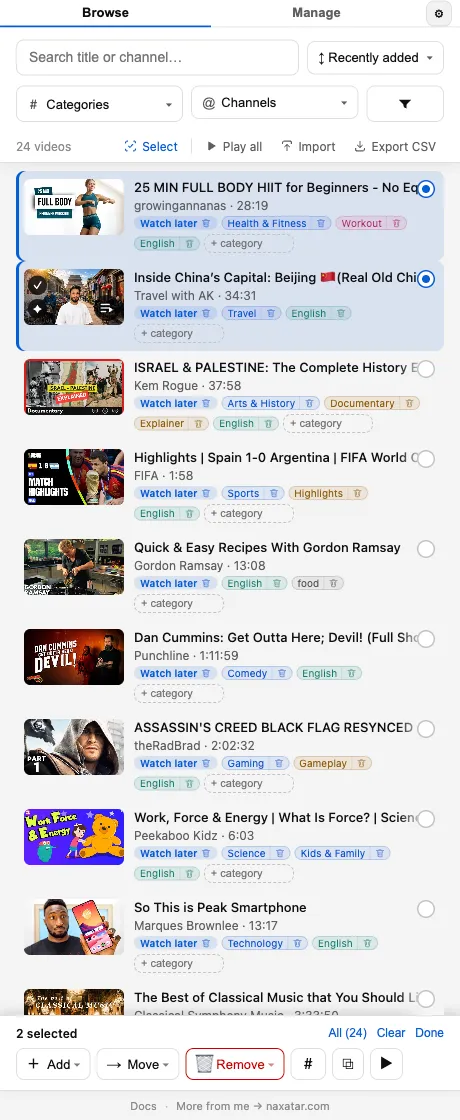
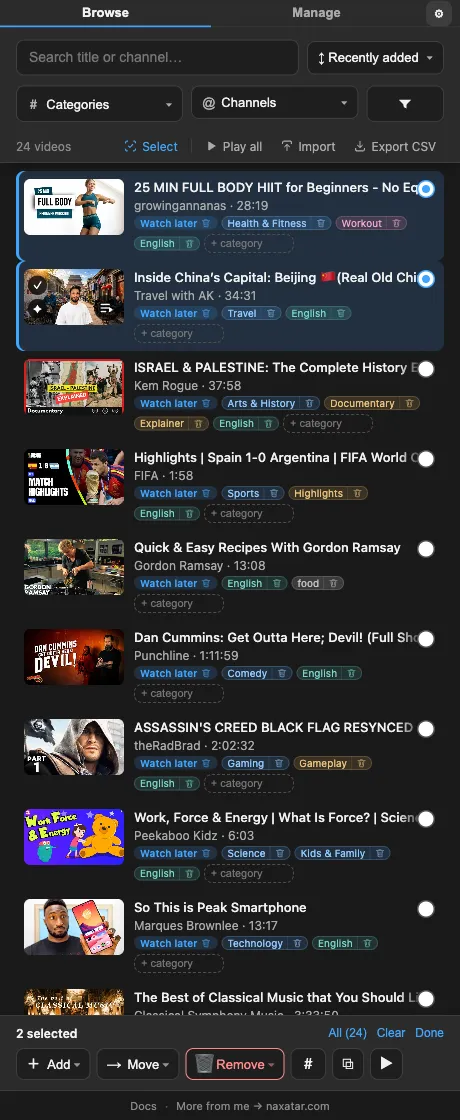
Two ways. Cmd-click (Ctrl on Windows) any video card to pick it, or Shift-click to take a whole range — straight from the list, with select mode switching itself on at your first pick. Or click “Select” in the results bar to enter select mode first; a checkbox then appears in each row’s corner, where Shift-click also selects a range. Clicking a title or thumbnail still plays the video, with or without a selection going, and Escape leaves select mode.

Does the order I select videos in matter?

Yes — the order you pick them is kept, and each selected row wears a number showing its place. Play plays the selection in exactly that order; unpick a video and the rest renumber, and picking it again puts it last, which is how you move something to the end. A Shift-click range follows the direction you dragged it, so picking video 20 and Shift-clicking video 10 plays 20, 19, 18… Add and Move also write in pick order: the videos land at the end of the target playlist in the sequence you clicked them. One quirk to expect: a playlist viewed as “Recently added” shows newest first, so there the moved videos appear in reverse — your last pick on top.

How do I move, add, or remove videos in bulk?

With videos selected, the bulk-action dock lets you add them to a playlist, move them across playlists, remove them from a playlist, create a new playlist from the selection, add or remove a category across the lot, copy their links, or select all. The Category menu works both ways: type a name to add it, or click one of the categories the selection already carries to take it off every selected video. Every operation shows live progress, and the result lands as a banner with a real Undo button. Bulk moves and removals confirm in an in-panel dialog that names the action. This is how you split one big list into several. To play the selection instead, use the results bar’s Play button, which appears with the count while videos are selected.

How do I see and change which playlists a video is in?

Each row shows the playlist(s) a video belongs to as an outlined pill — drawn differently from the filled category chips beside it, so “where this lives” reads apart from “what this is”. A single “Name ✕” pill you can remove, or “Name +N” with a hover dropdown listing every playlist, each removable. Read-only playlists (like Liked Music) show the pill without a remove control, and the built-in playlists carry their icon. Click a playlist name to filter to it.

Videos YouTube hides & the 5,000 cap

A video in my playlist was deleted or made private. Can I still see what it was?

If you scanned the playlist before it disappeared, yes. When a video is deleted, made private or blocked, YouTube hides it and the playlist page just says “Unavailable videos are hidden”. On its next full read the extension notices that a video it holds is no longer served while YouTube’s own count still includes it, and keeps the record: the row stays in Browse, dimmed and marked Unavailable, with the title, channel and thumbnail from your last scan. You can filter to those rows (More filters → availability), export them to CSV with an Unavailable column, and Remove still works on them. They can’t be played or queued, because a dead id stalls whatever is queued behind it. A video that comes back simply returns to the list. It cannot recover a video it never saw, so scanning early is what makes this work.

I have more than 5,000 Liked videos. What happens to the oldest?

YouTube’s limit works differently on Liked videos: liking keeps working, but the list shows only your latest 5,000 and the oldest like quietly drops off it while the thumb stays lit on the video. The extension reads Liked videos as Overflowing past 5,000 and keeps every like that falls off YouTube’s list: it stays in Browse with an Overflow mark, plays and queues like any other video, can be found under More filters → availability, and exports to CSV with an Overflow column. A like you remove yourself is still told apart from the window’s own trimming, so an unlike is dropped as before.

The panel shows fewer videos than YouTube says — why?

Because YouTube’s header counts videos it then refuses to hand over — deleted, private, and region-blocked ones. A playlist that reads “306 videos” can serve 272. For videos that went unavailable after you scanned, the row is kept and marked (see above). For ones that were already hidden the first time you scanned, there is nothing to keep, so the row says so rather than looking wrong: “272 videos · 34 hidden by YouTube.” The gap is learned once from a scan that reached the end, so the playlist stops re-scanning itself on every sweep.

Import & export

Playlist Wrangler — Import & export

How do I add a list of video links to a playlist?

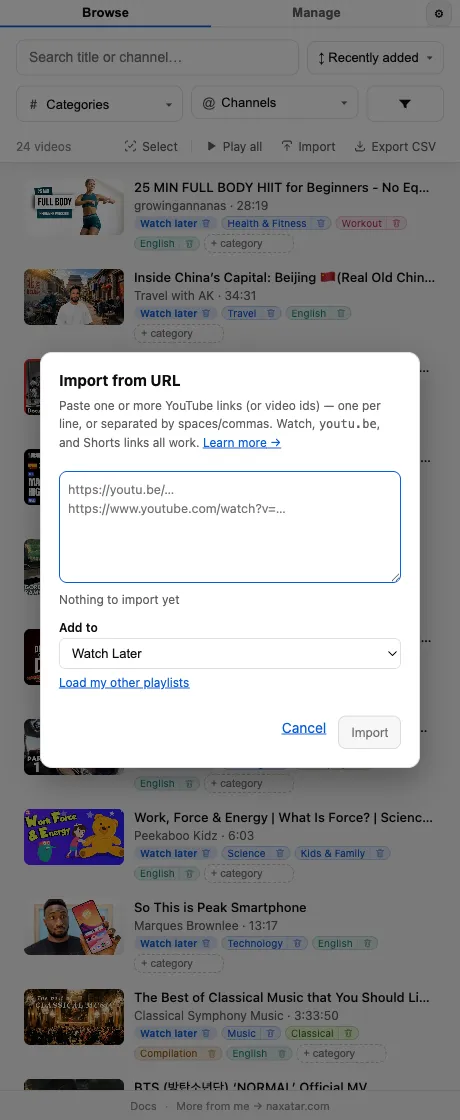
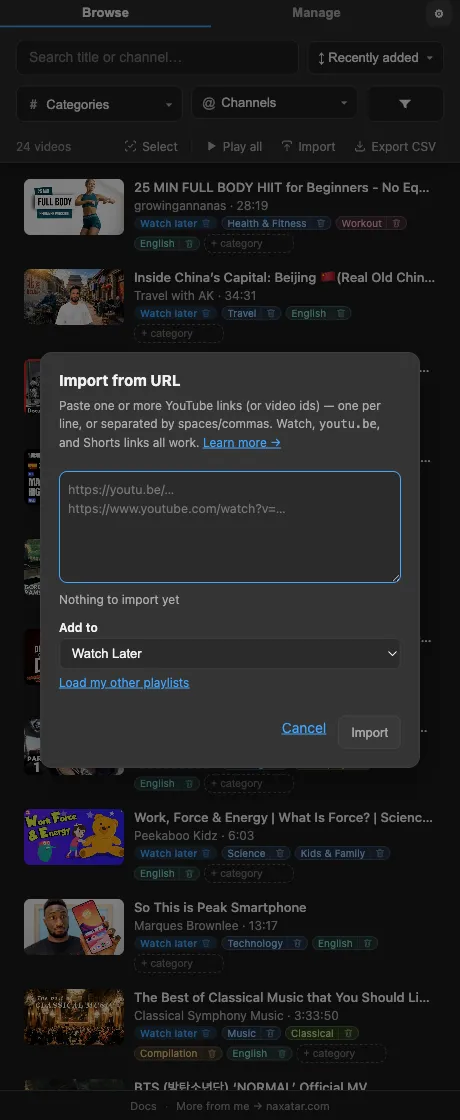
Yes. The “Import” button in the results bar opens a box where you paste YouTube links or IDs — any mix of watch URLs, youtu.be, /shorts/, /embed/, /live/, or bare 11-character IDs, separated by commas, spaces, or newlines — and adds them to a playlist you choose, or a new one. “Play now” plays the lot as a temporary playlist without saving anything. Links it can’t read are listed in full under the box the moment they’re parsed, with a copy button. If YouTube refuses some of the videos, the window stays open, lists each rejected link with the reason, and Retry re-sends just those — into the same playlist, even if the import had just created it.

How do I export my playlist to CSV?

The “Export CSV” button downloads exactly the current filtered/sorted list as a spreadsheet-ready CSV (UTF-8 with a BOM so Excel reads it cleanly). Columns: Title, Channel, Video ID, URL, Duration, Views, Published, and Categories (plus a Playlist column in the cross-playlist view), and Unavailable and Overflow columns for the rows YouTube has hidden or dropped. The file is named “Playlist Wrangler - <name> - YYYY-MM-DD.csv.” It’s an easy way to keep a copy of a list past YouTube’s limits.

Keeping in sync with YouTube

Does it stay in sync when I change a playlist on YouTube?

While the panel is open, Auto-sync (the “Auto” toggle in the Manage activity strip, also a Settings toggle) keeps your scanned playlists current with a fast light sweep plus periodic full reconciles. “Sync now” forces an immediate full reconcile of every scanned playlist, which catches deletions and reorders. The activity strip shows status like “Checking… / Updating… / In sync · 3m ago.”

Why does a playlist say it’s waiting to refresh?

To read the newest videos, a playlist is briefly switched to “Date added (newest)” and then put back the way you had it. Those switches are paced — one every 10 minutes — so a library with several differently sorted playlists refreshes them in turn rather than flipping your playlists back and forth. A playlist waiting its turn says so, on the row and in the sync line, and nothing is written until the order is right, so a playlist you sorted your own way is never saved with its newest videos buried.

Multiple accounts

Does it work with more than one YouTube account?

Yes. The panel automatically follows whichever Google/YouTube account the active YouTube tab is signed into — there’s no separate switcher. An account badge (avatar + name) shows in the tab strip only once two or more accounts have data. Your first account is fully free; managing a second (or more) is a one-time free unlock that asks for an email. Data is kept separately per account.

Settings & privacy

Playlist Wrangler — Settings & privacy

What’s in the settings (⚙) screen?

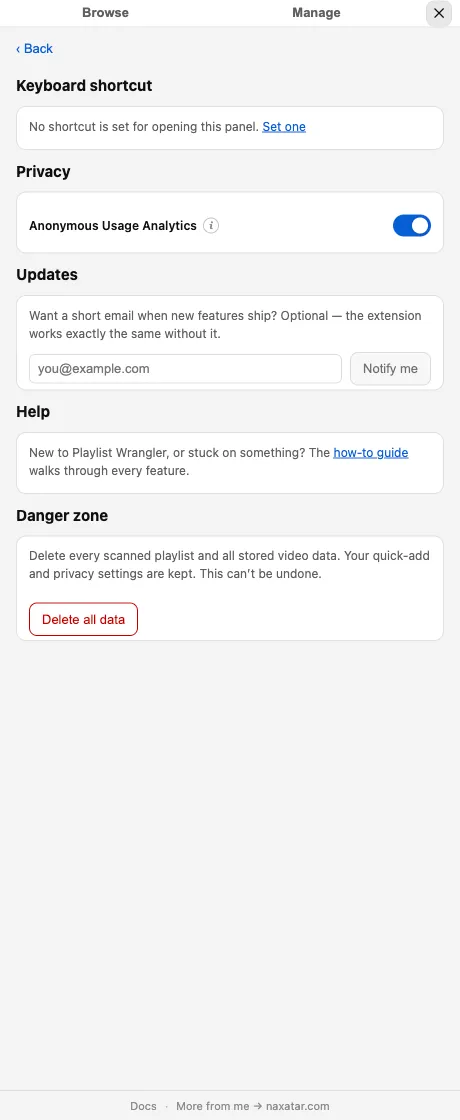
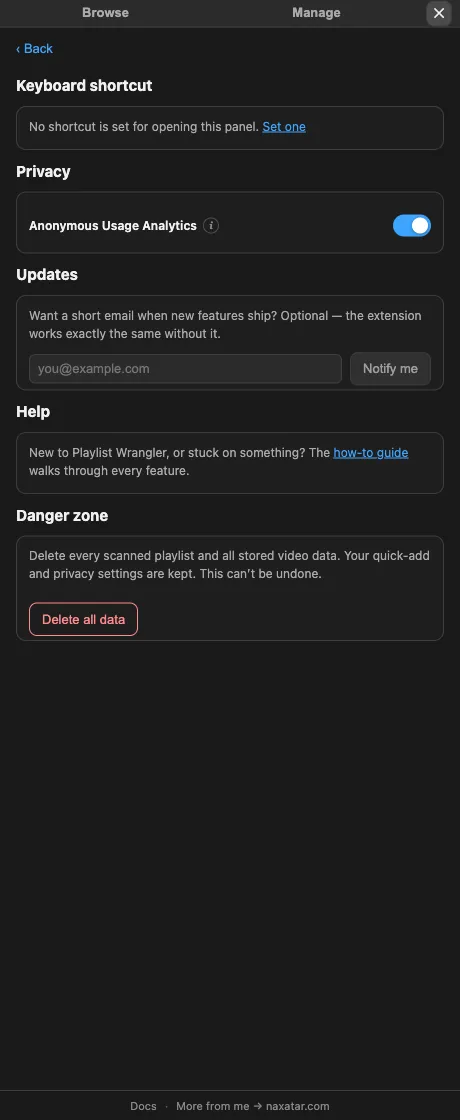
The gear opens app settings: your keyboard shortcut (with a link to rebind it), a Privacy toggle for anonymous usage analytics, an optional email opt-in for release notes, and a Danger Zone to delete all scanned data (or one account’s, when you have several). The Quick Add and Quick Ask feature settings live on the Manage tab instead.

Where is my data, and what gets sent anywhere?

What it scanned — playlists, categories, and metadata — lives in your browser’s local storage on your machine, and never leaves your device. There’s no account to create. The only thing it sends is anonymous, content-free usage counts (and only if you leave analytics on); never your video titles, channels, categories, or playlist contents.

How do I delete everything the extension stored?

Gear → Danger zone → “Delete all data” wipes every scanned playlist and all stored video data (your Quick Add and privacy settings are kept). With two or more accounts, you can also delete a single account’s data. This can’t be undone.

Troubleshooting & FAQ

Quick Ask isn’t returning anything — why?

Quick Ask relies on YouTube’s own built-in “Ask” AI, which YouTube rolls out per account. If you never get a result, your account likely doesn’t have that feature yet; after a few different videos come back the same way the extension says so plainly and points at the setting to hide the button. It’s also in beta, so answers can be wrong. Off the watch page it briefly opens a hidden background tab to summarize, which takes a few seconds.

What are the keyboard shortcuts and gestures?

Cmd-click (Ctrl on Windows and Linux) a row to pick it; Shift-click to take a range, in either direction. Middle-click or Cmd/Ctrl-click a title to open the video in a new tab. Escape closes one layer at a time, top down: a dialog, then a menu, then whatever the field you’re typing in means by it, then select mode or the screen you’re in. The panel itself opens with Cmd+Shift+P (Ctrl+Shift+P on Windows/Linux; Alt+Shift+P in Firefox), and the right-click menu shows your real binding. You don’t have to memorise any of this: the panel notices when you’re doing something the slow way and says one line at the moment it would help, never to someone who already uses the gesture, at most twice, and never again once you close it.

A big playlist is taking a long time to scan.

Scanning every video in detail is roughly an hour per 1,000, because it opens each one for accurate detail. It’s throttled to be polite to YouTube, but it’s resumable and stoppable — stop any time from the activity strip and keep whatever finished, or stay at the default depth, which already covers the newest 100 in detail.

Is it free?

Yes — completely free and ad-free, including the automatic categories. There’s no paid tier that unlocks features. If it helps you, you can support the work, but you never have to.

Which browsers does it work on?

Any Chromium-based browser — Chrome, Edge, Brave, Opera, and Arc — plus Firefox. Chrome, Edge, and Firefox each have their own store listing, built from the same source; Brave, Opera, and Arc install the Chrome one. It’s a Manifest V3 extension. Opera and Arc have no side panel for extensions, so there the panel opens as a window (see below).

I use Firefox Multi-Account Containers and it seems signed out or shows the wrong account.

Update to 1.5.0 or later. Before that, the extension read your session from outside the container, which left it either signed out or acting as whichever account you use in a normal window — so the panel could come up empty and adding or removing videos failed. It now uses the session belonging to the tab you’re working in, so a container tab is handled as the account that’s signed in there.

Does it work in Arc or Opera?

Yes, since 1.17.0, as a window, and it is experimental. Arc and Opera have no side panel for extensions, so the panel opens as a window of its own beside your browser window. The library, search and playlist edits work from there; Play and Add to queue use the YouTube tab you have open. In Opera the keyboard shortcut toggles the window; Arc does not deliver extension shortcuts, so use the toolbar icon. Anything that does not behave as in Chrome: use the feedback link in the panel.

Still stuck? Head to the feedback form, or get the extension if you haven’t yet.